
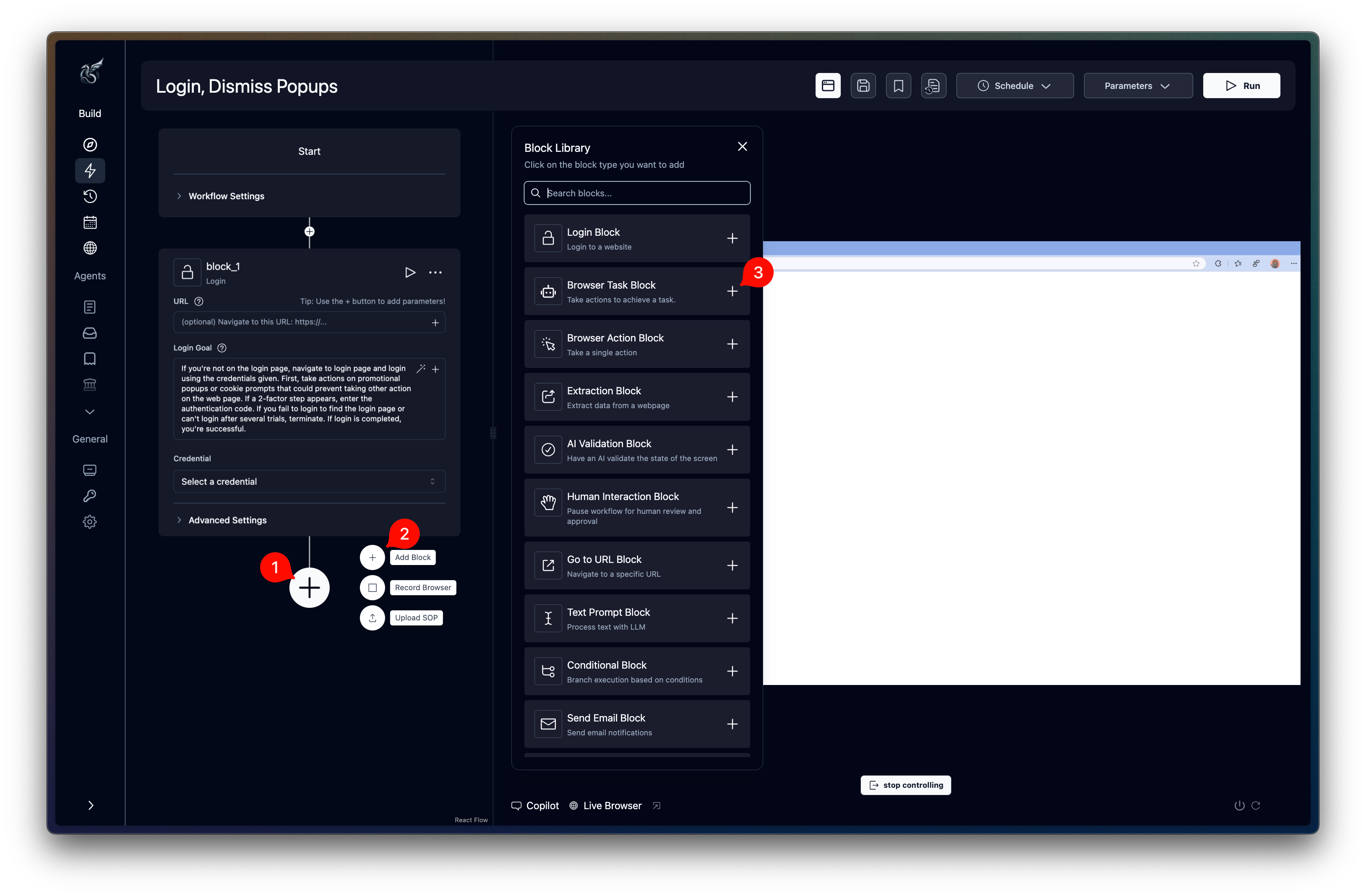
To add a block in your agent, click the + button, click on Add block, then select the block type from the menu.
Quick reference
Common fields
These fields appear on most blocks:
Browser-based blocks (Browser Task, Browser Action, Extraction, Login, File Download) share these additional fields:
Set TOTP Verification URL on the block that may encounter 2FA. Top-level workflow run
totp_url values do not automatically populate empty block fields.Browser Automation
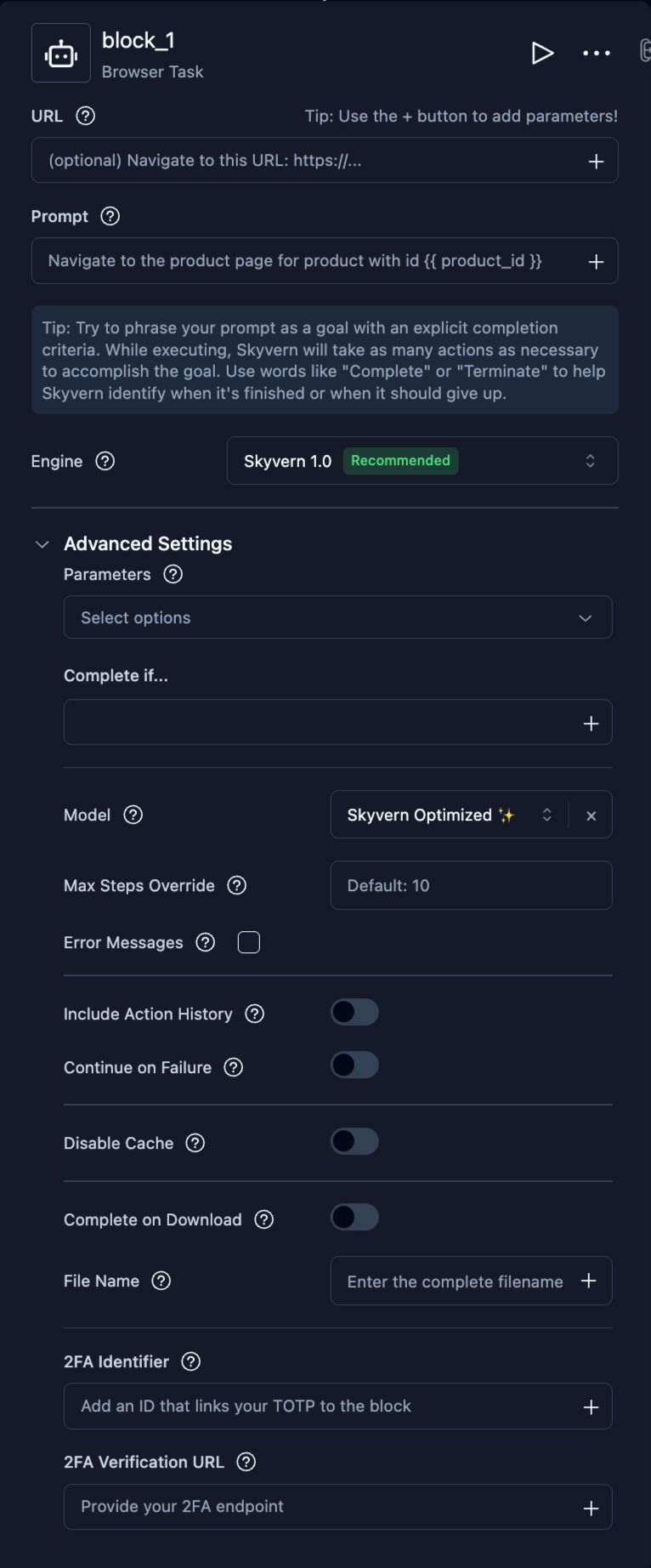
Browser Task
The primary block for browser automation. Accepts a natural-language prompt and autonomously navigates the browser to accomplish the goal. The block uses Skyvern 1.0 by default. Existing agents that already contain V2 browser blocks remain editable and may show a reduced field set. Skyvern 1.0:
Existing V2 blocks:
Additional fields in Advanced Settings (Skyvern 1.0 only):
Plus common browser fields.
Browser Action
Execute a single browser action. Best for precise, one-step operations like clicking a specific button or entering text in a field.
Additional fields in Advanced Settings:
Plus common browser fields.
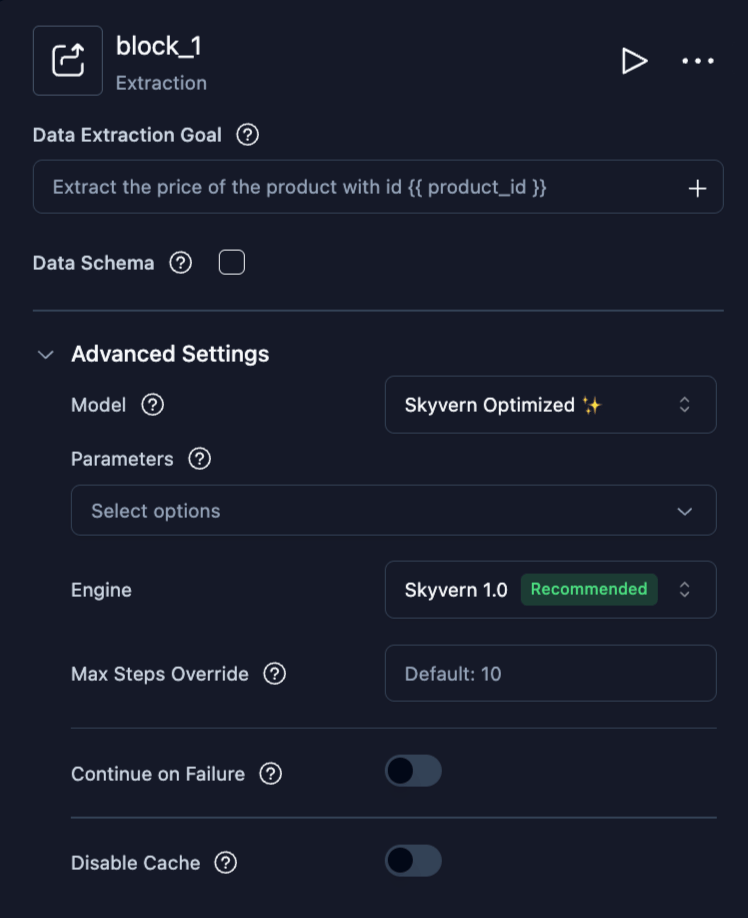
Extraction
Extract structured data from the current page using AI.
Plus common browser fields.
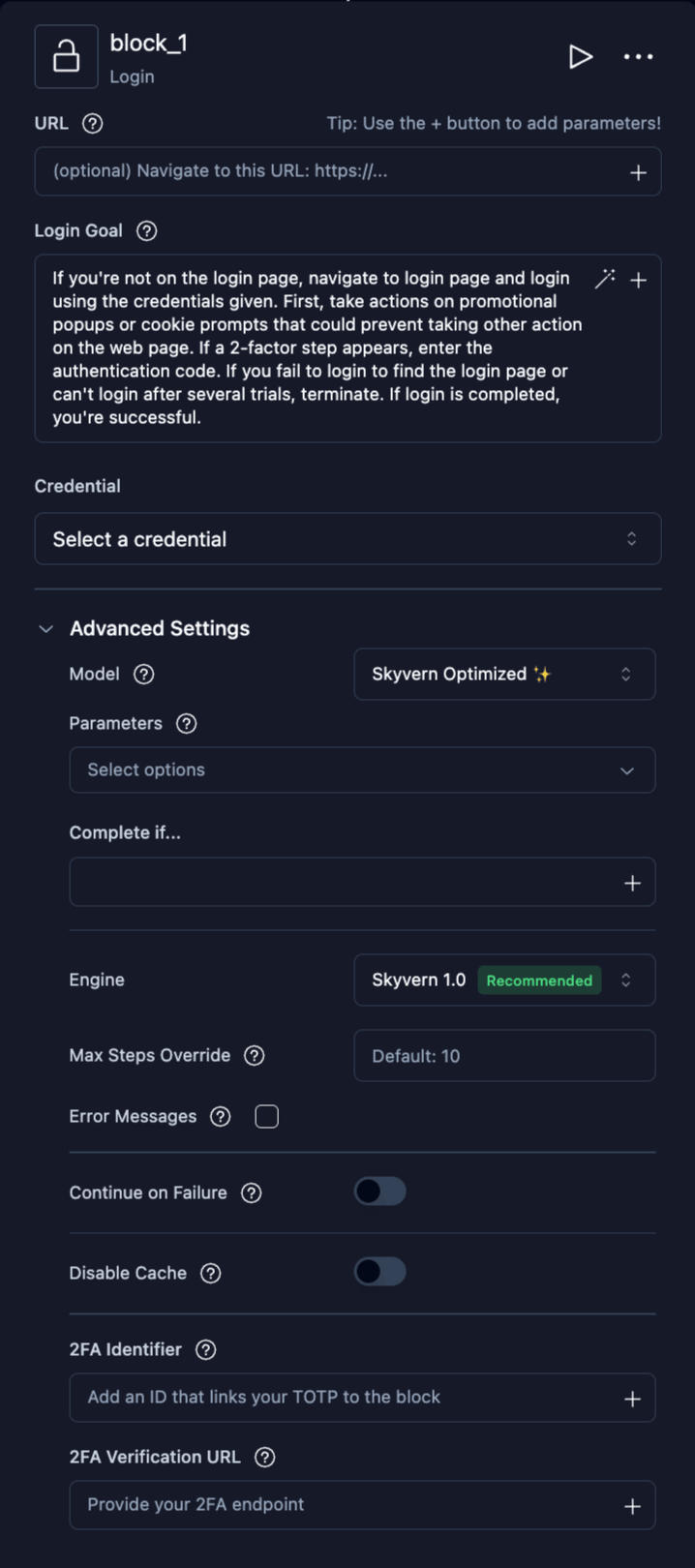
Login
Authenticate to a website using stored credentials. Pre-filled with a default login goal that handles common login flows including 2FA.
Additional fields in Advanced Settings:
Plus common browser fields.
Go to URL
Navigate the browser directly to a specific URL without AI interaction.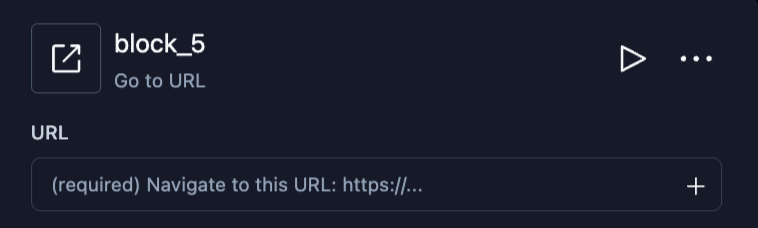
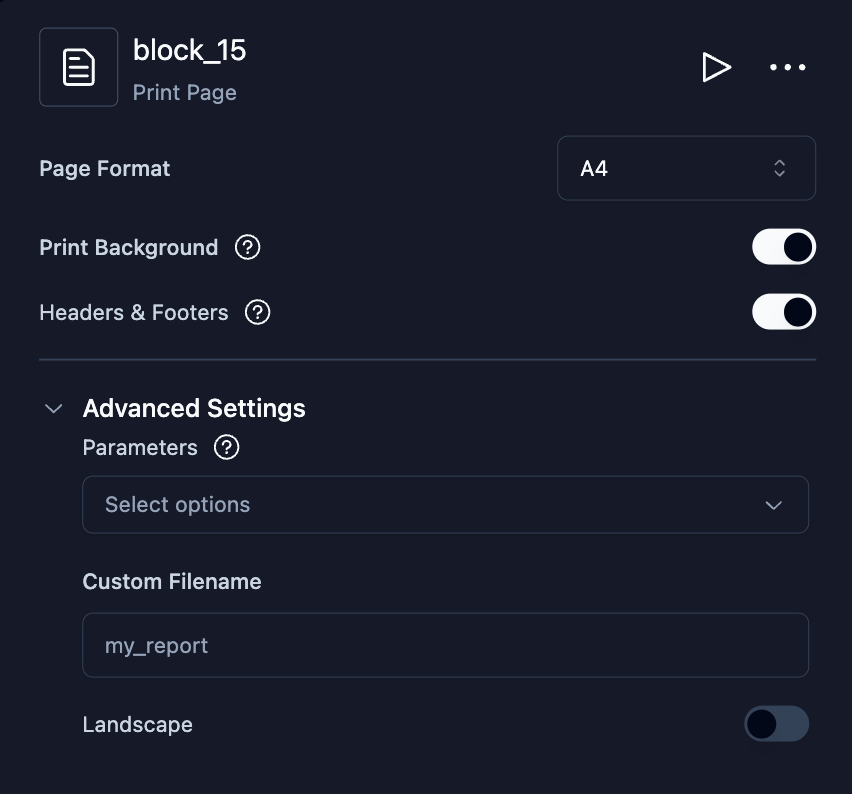
Print Page
Print the current browser page to a PDF file. The PDF is saved as a downloadable artifact.
Additional fields in Advanced Settings:
Data and Extraction
Web Search
Search Google or Exa over an API. Addsite:example.com to the query to search within a site. This block does not open a browser or read linked pages.
Google supports site restrictions. With a single site:domain or site:domain/path filter, the block removes results outside the filter. It repeats the search up to twice when Google returns only results outside that filter. It does not filter queries with quotation marks, parentheses, |, OR, or multiple site: filters. Exa supports one positive site:domain filter. Unsupported Exa expressions fail instead of expanding the search.
Automatic starts with Google. It tries Exa only if Google fails before returning results and the server has an Exa key. Empty results do not trigger fallback. Selecting Google or Exa uses only that provider.
A Prompt receives the normalized results, including an empty list. Without a Data Schema, its answer is text. A Data Schema alone asks the model to return the results in that shape. The answer is stored in
prompt_output. Invalid schemas are rejected when you save. Schemas with parameter references are checked after those references are filled in. A response that fails validation retries once before the block fails.
Leave Prompt and Data Schema blank to skip result processing. Error Messages still make an LLM call when configured on the block or workflow. Block entries override workflow entries with the same code. The model checks results, processed answers, and block failures against those descriptions, including failures before the search starts.
A successful search completes when no error code matches, including when it returns zero results. A matching code terminates a successful search. If the search or Prompt fails or times out, a matching code attaches to that failure without changing its status or system failure reason. If error detection fails, the block keeps the search outcome without a code.
The old no_results_error_code and no_match_error_code fields are deprecated. Saved values are read as Error Messages. They describe empty results and results that do not satisfy the Prompt. An explicit Error Messages entry with the same code takes precedence.
The output always includes:
query: the rendered query, or the configured query if rendering fails.provider:googleorexa.results: objects withtitle,link,snippet,display_link, and one-basedposition.total_count: the number of returned results.prompt_output: null, text, or the JSON value defined by Data Schema.raw_response.pages: provider responses, with credentials removed.
snippet is empty when Exa has no cached copy of the page or when the request for page highlights fails.
For example, use {{ web_search_1_output.results }} in a downstream block. A later page failure keeps validated partial results and completes the search. A Prompt failure keeps those results but fails the block.
Failed and terminated outputs also include status, failure_reason, and errors. They carry a failure_category. For execution denials, such as insufficient credits, its value is null. Detected codes appear in the run’s errors list with their explanations. Enable Continue on Failure to let the next block inspect the output. The Search failure category applies to the run only when the block ends it.
A terminated Search block shows its failure reason in the timeline instead of the result count.
SERPAPI_API_KEY and EXA_API_KEY in the server environment. Google pagination can use multiple API searches for a single block run.
Text Prompt
Send text to the LLM for processing without browser interaction. Useful for summarizing, transforming, or analyzing data between browser steps.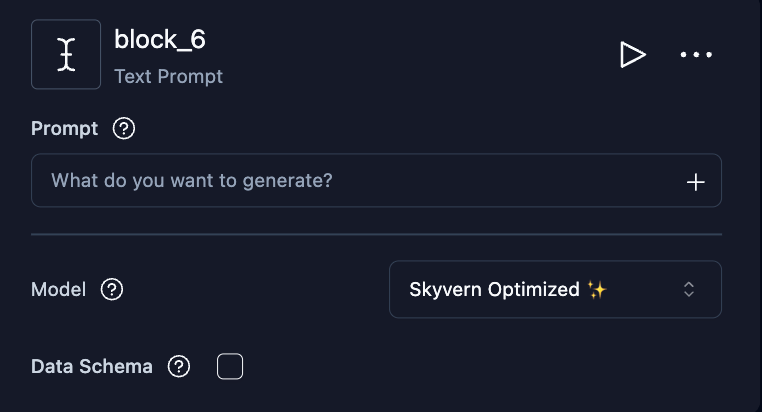
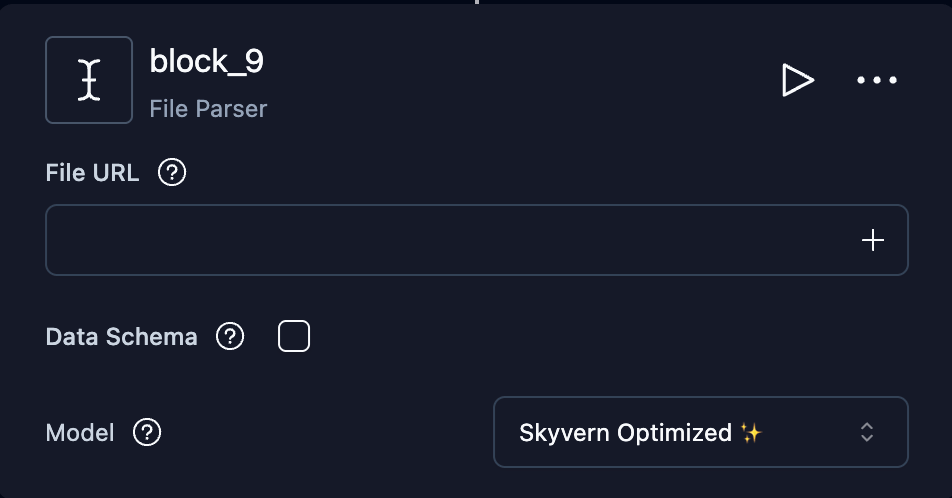
File Parser
Parse PDFs, CSVs, Excel files, images, DOCX files, and ZIP archives. ZIP inputs are unzipped, and the block outputs the extracted file list asfile_name, file_path, and file_size. Data Schema is ignored for ZIP inputs; loop over the file list and pass each file_path to another File Parser block to parse individual files.
Very large files can exceed the parser’s time budget and fail the block. When a File Parser sits inside a loop, set On block failure (Advanced Settings) to Skip to next iteration so files that cannot be parsed are skipped and the rest of the list still runs.
Control Flow
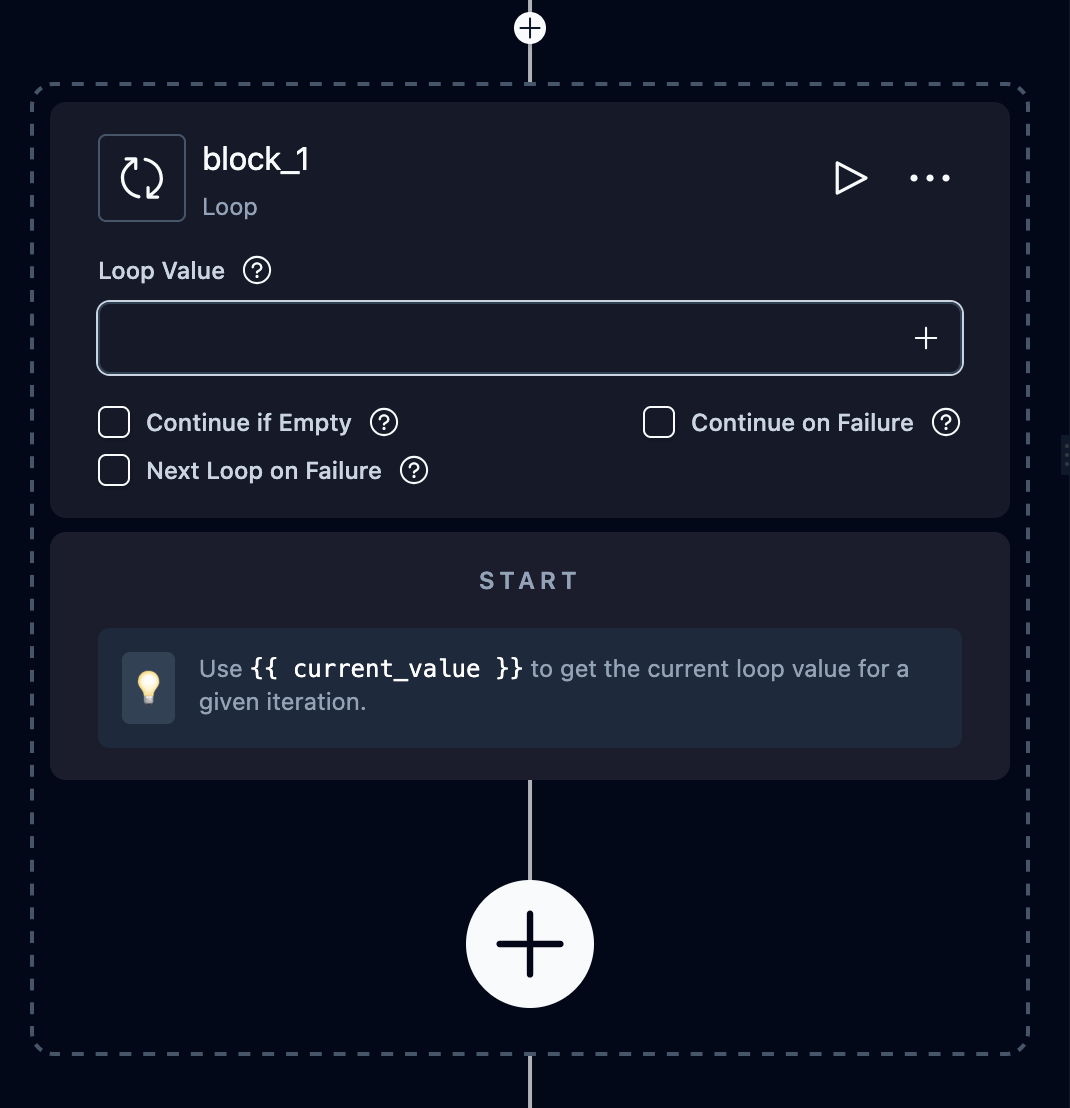
Loop
Repeat a sequence of blocks for each item in a list. Child blocks are placed inside the loop on the canvas.
Inside loop blocks, use these reserved variables:
{{ current_value }}: the current item{{ current_index }}: the iteration number (0-based)
While Loop
Repeat a sequence of blocks while a condition remains true. Child blocks are placed inside the loop on the canvas.
Inside while-loop blocks, use these reserved variables:
{{ current_index }}: the iteration number (0-based)
has_next_page boolean inside the loop, click Next, and let the next condition check decide whether to continue.
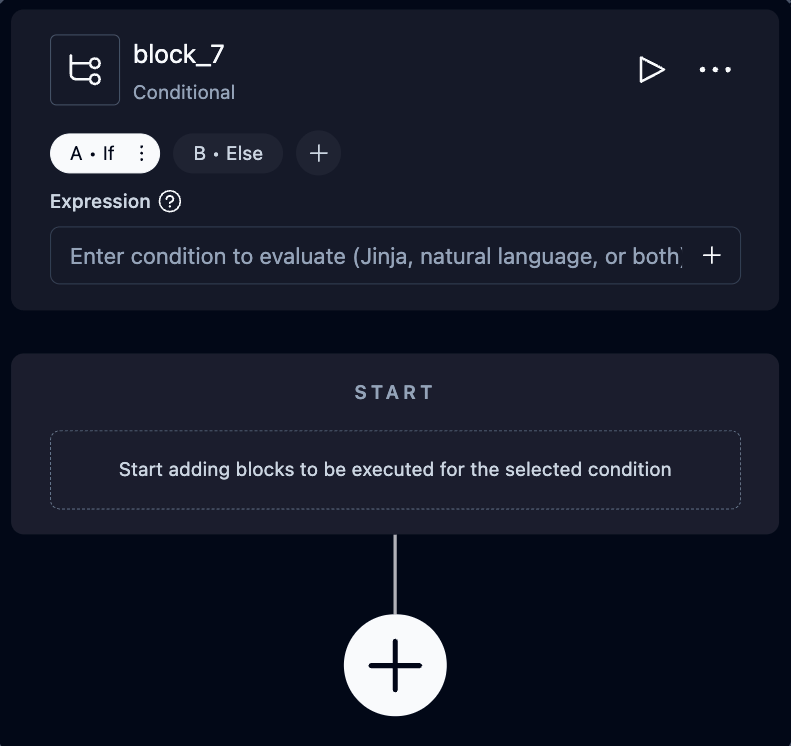
Conditional
Branch the agent based on conditions. The UI shows branches as tabs (A, B, C, etc.). Each branch has an expression that determines when it executes. Expressions can be Jinja2 templates or natural language prompts.
Example Jinja2 expression:
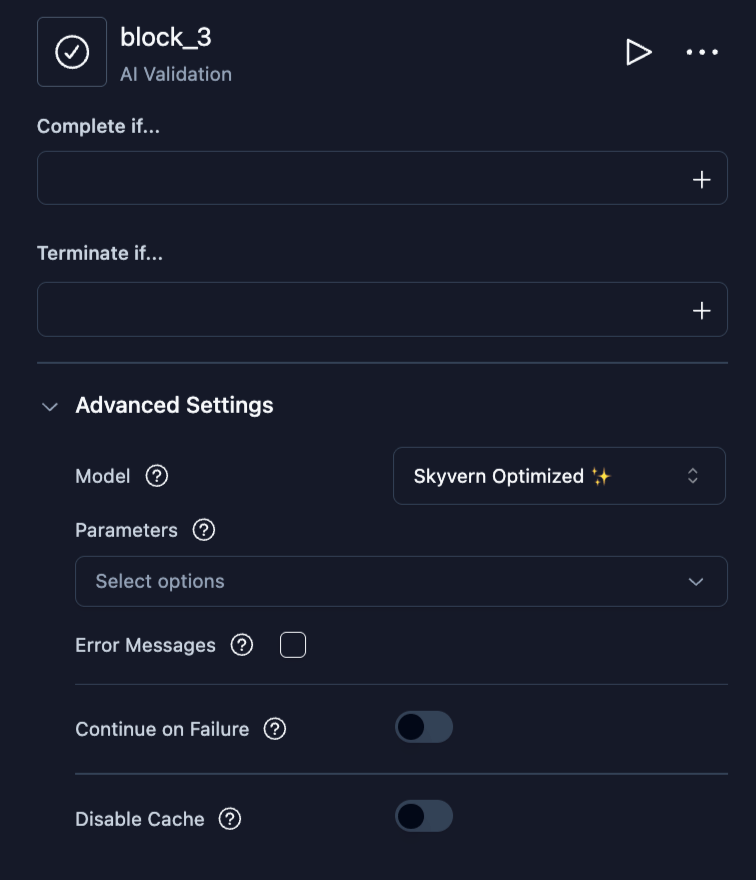
AI Validation
Assert conditions using AI and halt the agent on failure. Useful for checking that a previous block produced expected results before continuing.
Additional fields in Advanced Settings:
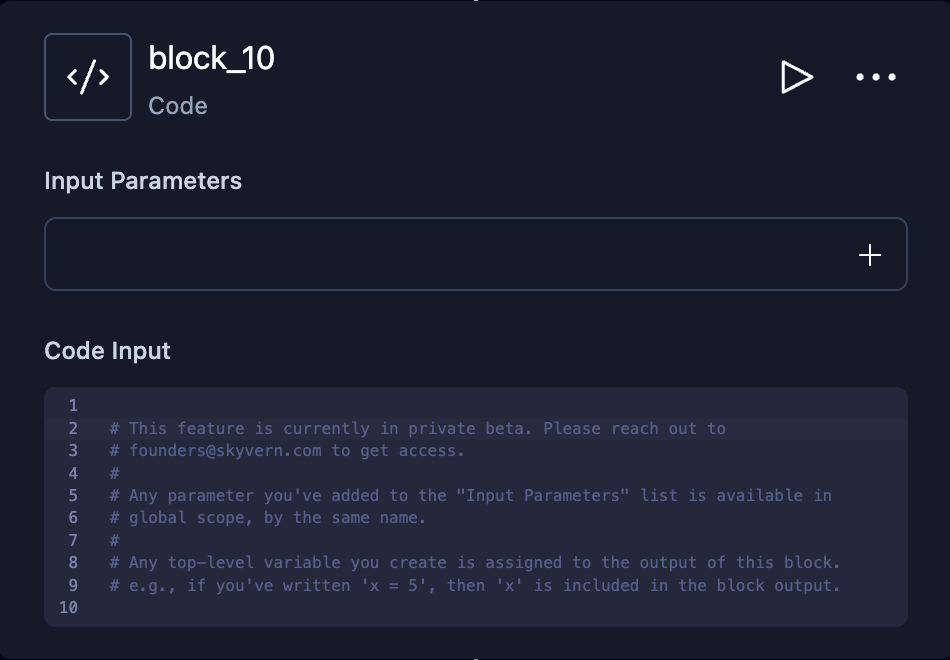
Code
Execute custom Python code. Input parameters are available as global variables. Top-level variables in your code become the block’s output.
Password credential input parameters expose plaintext fields such as
login_credential.username and login_credential.password. These values are
readable by Python code inside the runner; they are not opaque handles. Use them
only where needed, such as passing them directly to browser operations.
For one-time codes, use await login_credential.otp(), the supported pattern
across both execution paths. Do not rely on .totp or the top-level otp(...)
helper, whose behavior differs between paths. If no OTP source is configured,
login_credential.otp() fails with a clear one-time-code-unavailable error.
Wait
Pause agent execution for a specified duration.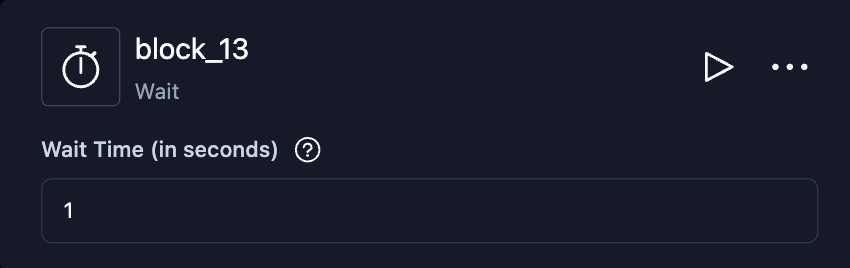
Files
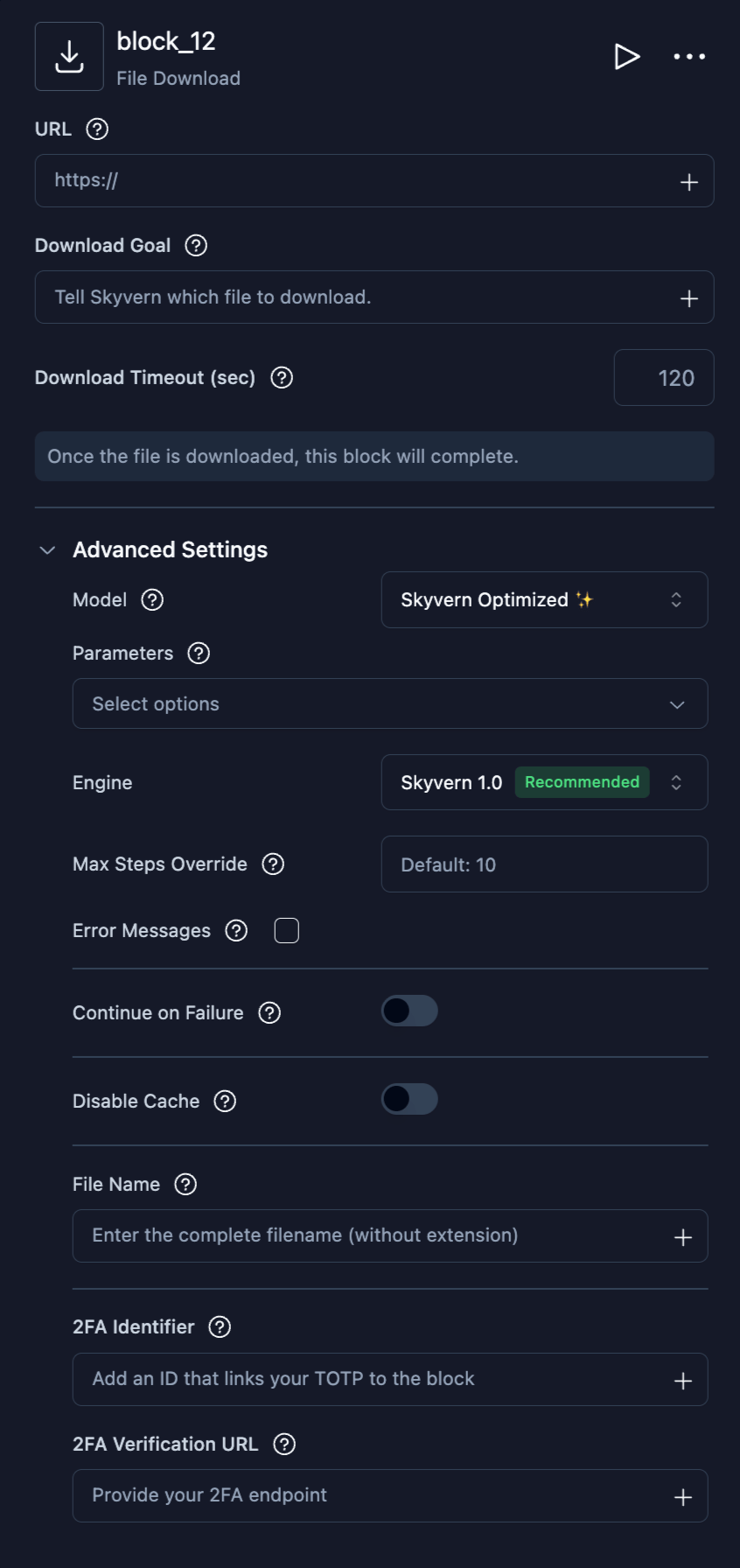
File Download
Navigate the browser to download a file.
Additional fields in Advanced Settings:
Plus common browser fields.
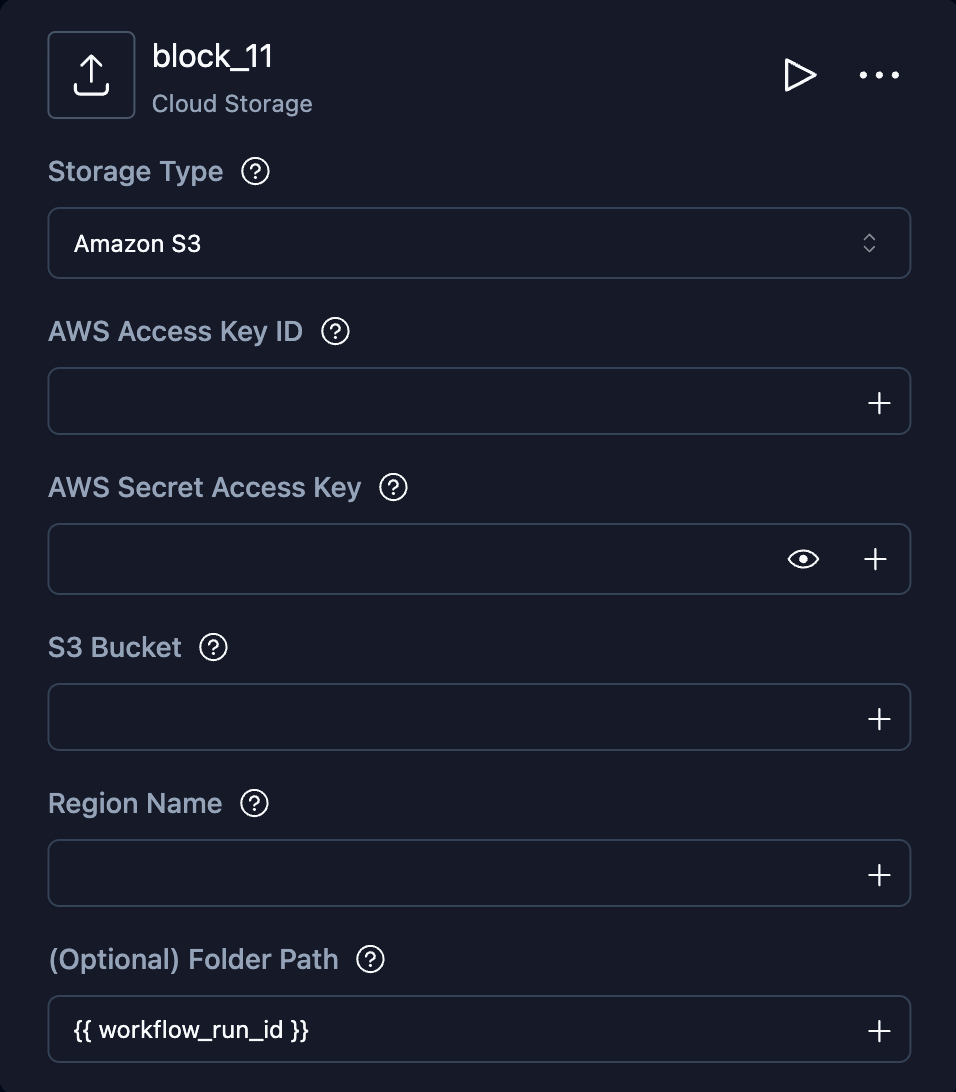
Cloud Storage Upload
Upload downloaded files to S3 or Azure Blob Storage.S3 fields
S3 fields
Azure fields
Azure fields
Communication
Send Email
Send an email notification, optionally with file attachments from previous blocks.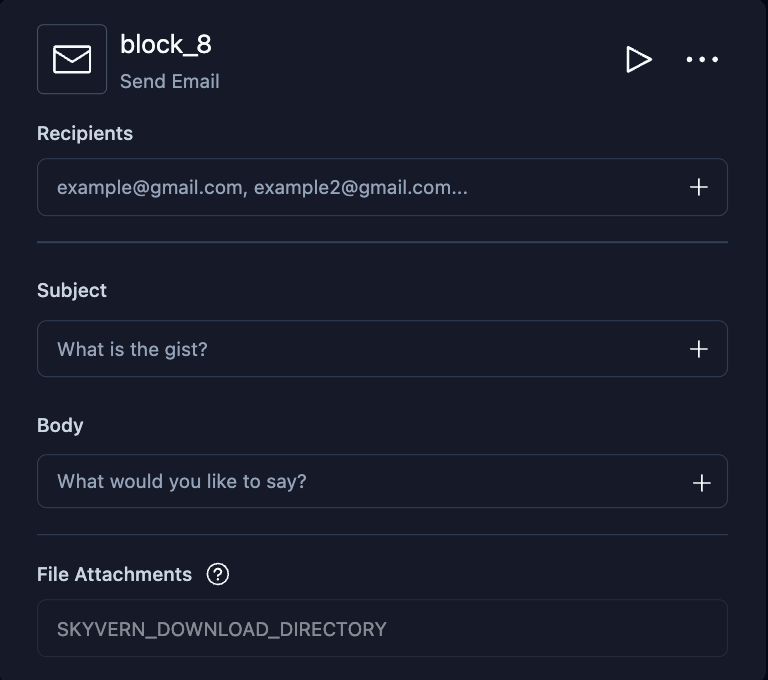
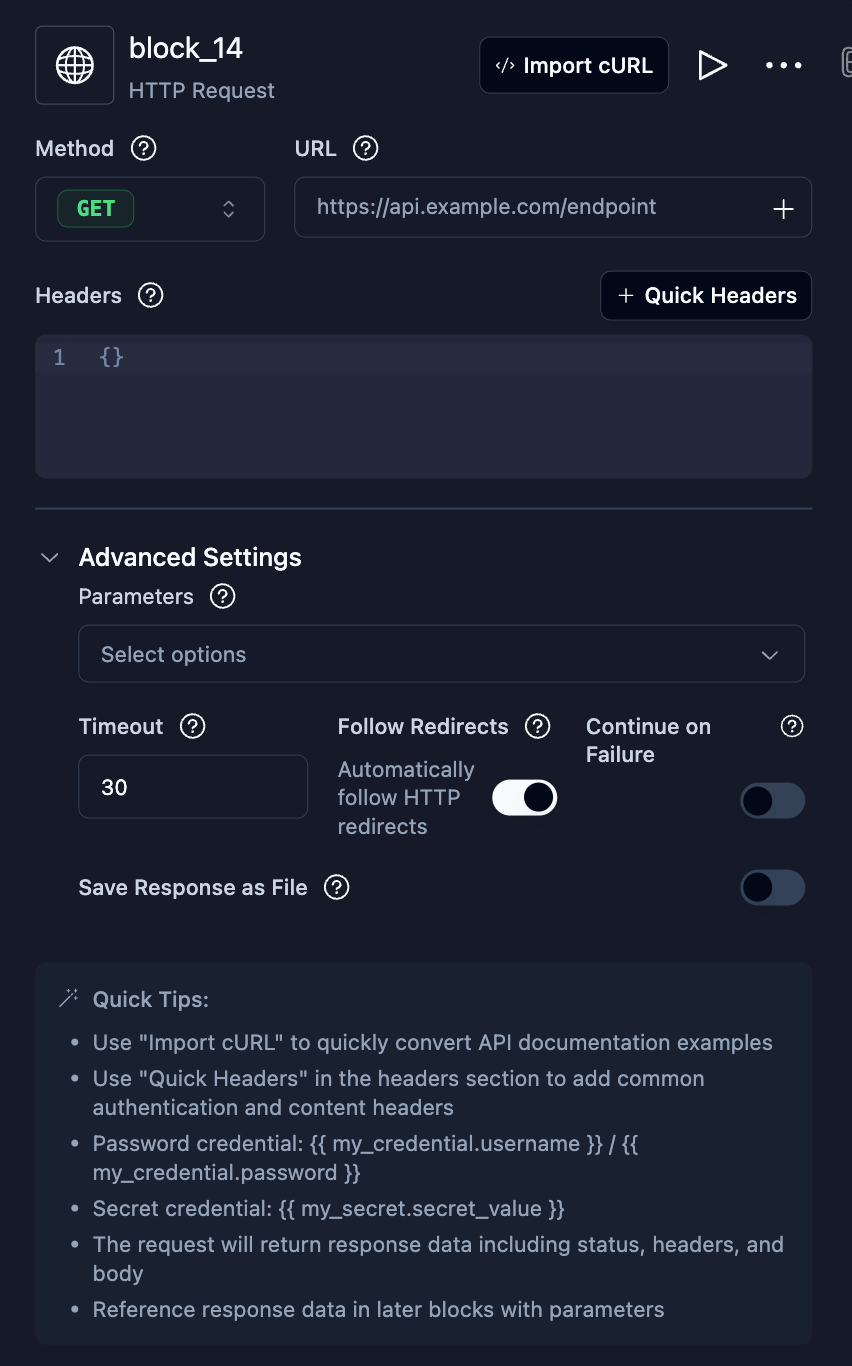
HTTP Request
Make an API call to an external service. Click Import cURL in the block header to populate fields from a cURL command.
Additional fields in Advanced Settings:
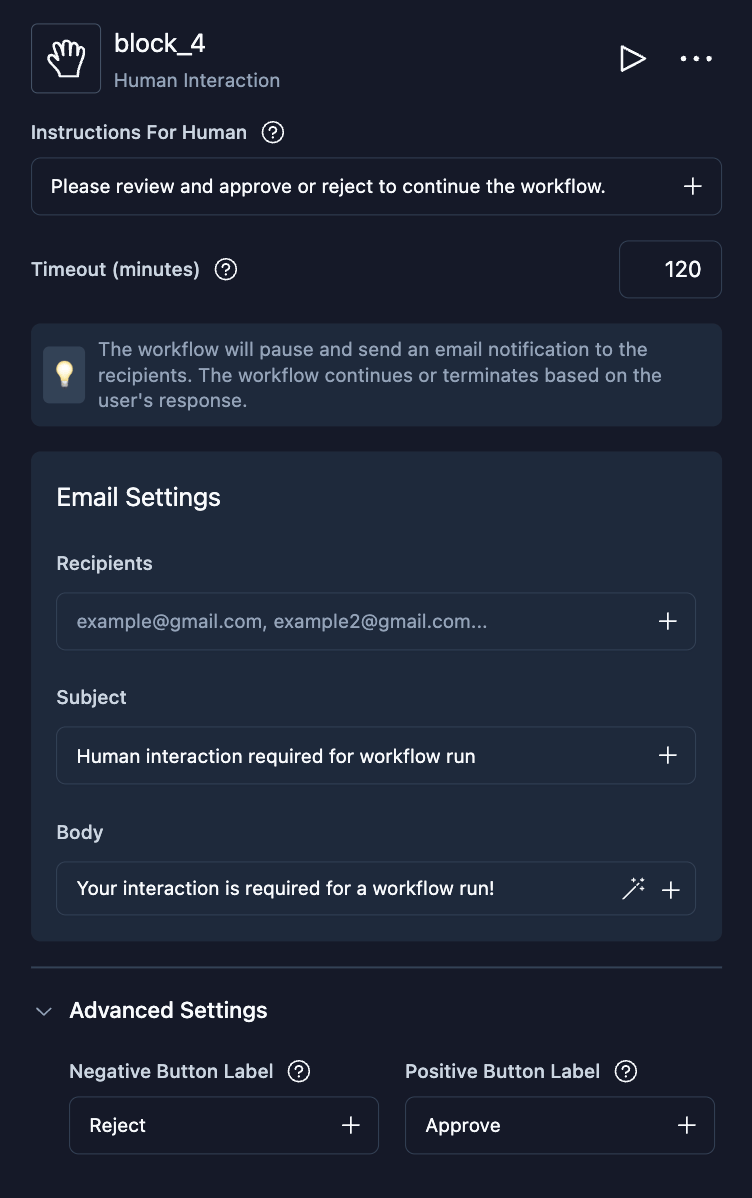
Human Interaction
Pause the agent and request human input. Optionally sends an email notification to reviewers.
Email notification fields:
Additional fields in Advanced Settings: